You'll set up your studio's Space in the Sssion app, in about the order below. Build the room first, then open the door.
1. Get your studio Space
Studio Spaces are set up personally with our team. Create your account in the Sssion app, start your Space and choose your studio's username, then email studio@sssion.studio. We'll set up and publish your studio Space in one step, and let you know when it's ready.
2. Make the welcome yours
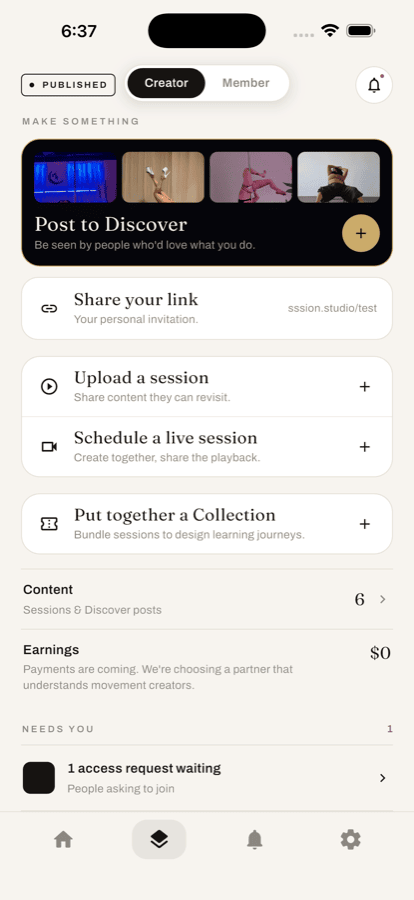
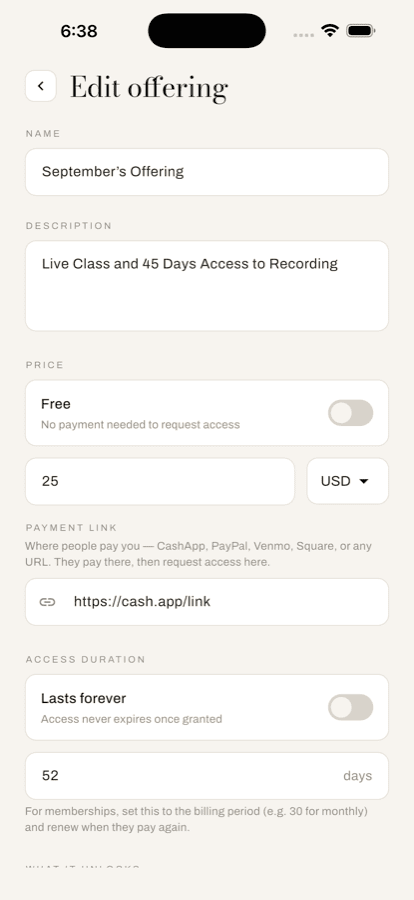
Your Space comes with a free Community offering: the front door. Tap Manage (layers) → Put together a Collection → Community, rewrite the Description in your studio's voice, and tap Save changes.
3. Set up your rooms
Members land on your room wall. Your studio starts with two rooms: Progress Shares, where members post videos of what they're working on, and Community Chat, for conversation.
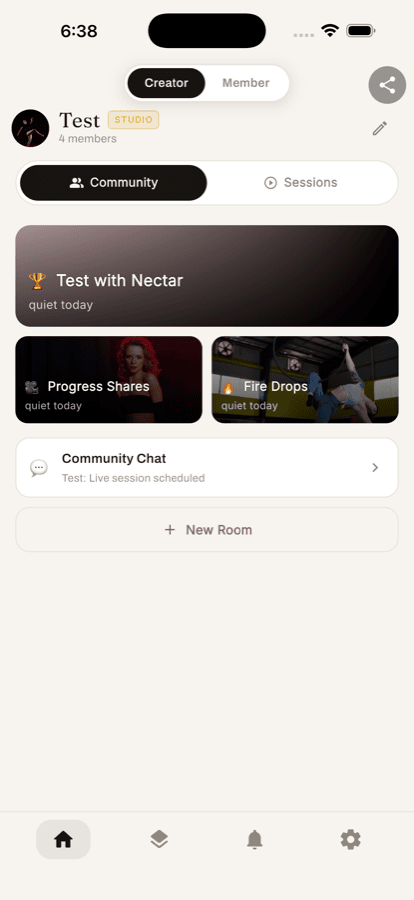
Add rooms as you need them. Video rooms hold clips and progress videos; chat rooms hold conversation and images. Start small: one room per class style or level is plenty.
A room can also be kept for people who hold a specific offering, like a teacher-training cohort. Members see it on the wall, but only that group gets in.
4. Invite your instructors
Go to Settings (gear) → Staff and invite your instructors by email. They don't need an account first; the invite waits for them and connects when they sign up with that email.
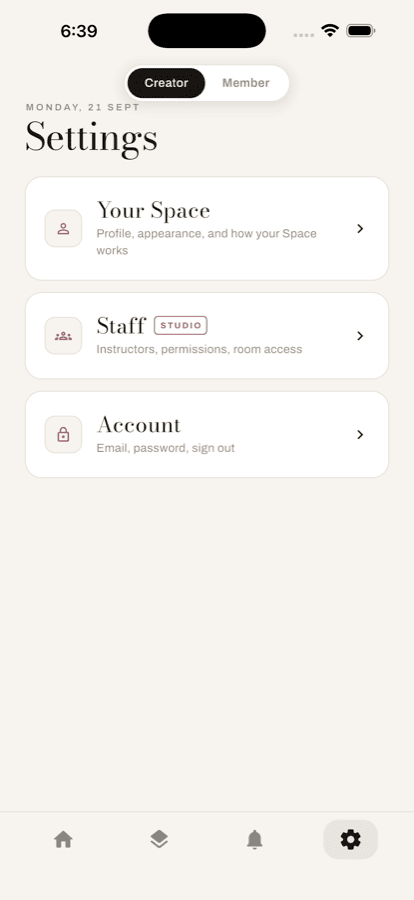
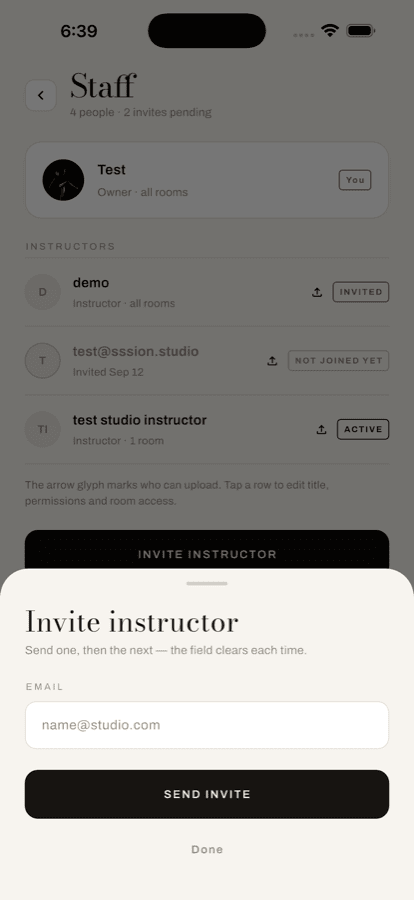
For each instructor, choose which rooms they can post in and look after, and whether they can upload sessions. Ask each of them to post once before you invite members. A wall with familiar faces on it feels like your studio.
5. Decide how members get access
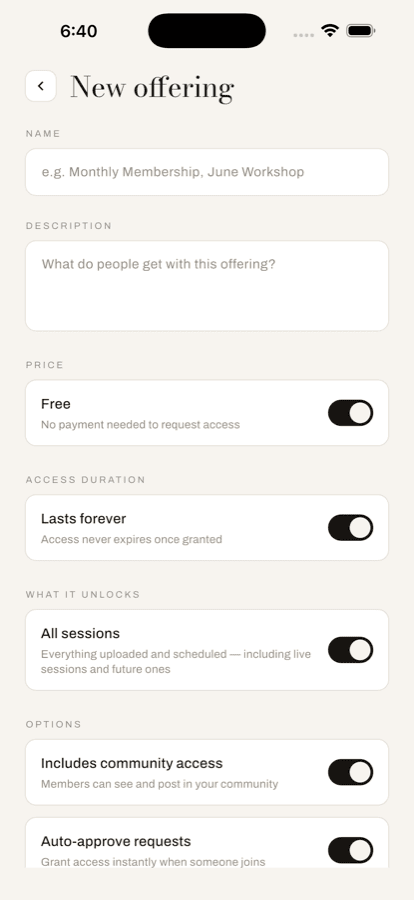
Pick the approach from Keep your booking system. Add a community. that fits your studio, then build it under Manage → Put together a Collection. Each offering has a name, description, price, access length, what it unlocks, and whether it includes community access.
6. Bring it alive before you invite anyone
Nobody wants to walk into an empty room. Your Space is live from the moment it's set up, but your students won't know about it until you share your link, so use that time to fill it. Post a hello in Progress Shares, get each instructor to post once, and upload a session or two. Press and hold your best session and tap Pin to top so new members know where to start.
7. Open the door
On Manage, tap Share your link. Put it in your booking confirmation emails, on a card at the front desk, and in your newsletter. Say it out loud at the end of class.
Requests arrive under the bell in your bottom bar. Tap ✓ to let someone in.
Questions along the way? Email studio@sssion.studio. New to the idea? Start with Your studio doesn't stop when class ends.